# Introduction
Pandas is one of the most popular Python libraries for data analysis. It provides you with simple tools for cleaning, reshaping, summarizing, and analyzing structured data. One of the most useful features of pandas GroupBy. It helps you answer questions that need to group rows into one or more categories.
For example, if you're working with sales data, you might want to calculate total revenue by location, average order value by product category, or the number of orders handled by each sales representative. Instead of manually sorting each category one by one, GroupBy allows you to perform these calculations in a clean and efficient way.
In this tutorial, we'll walk through practical examples of using Pandas GroupBy with a small sales dataset. I use it A deep note as a coding environment, so some output is shown as notebook screenshots directly below the code blocks.
# Creating a Sample Data Set
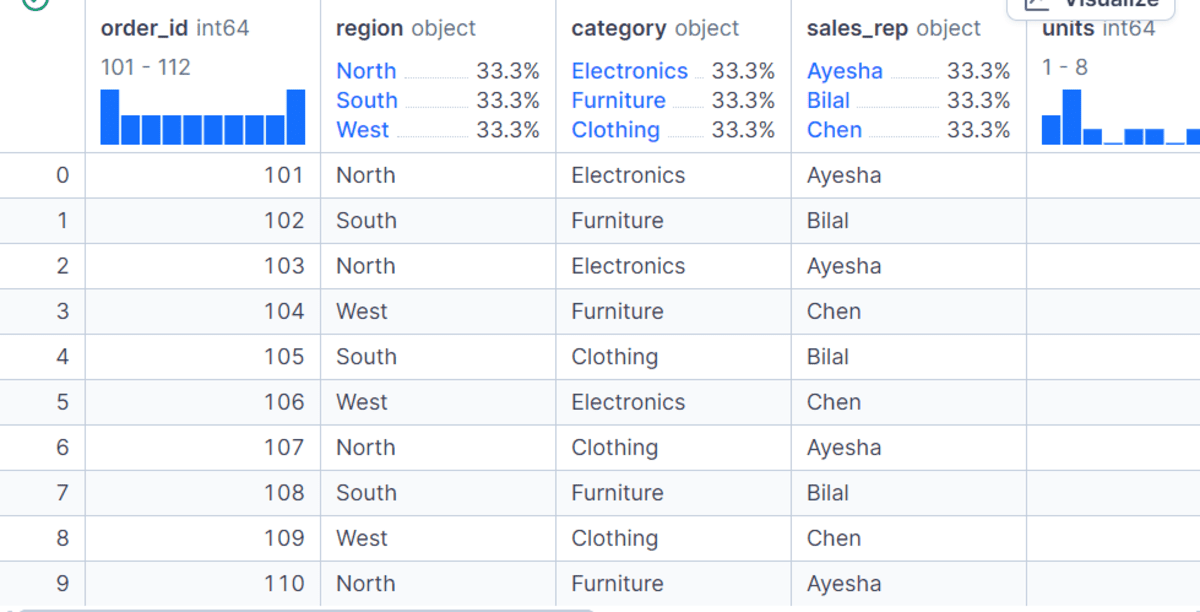
Before using GroupBy, we first create a small sales data set with columns like order_id, region, category, sales_rep, units, unit_price, discountagain order_date. We then convert the dictionary to pandas DataFrame and create two new columns: gross_sales again net_sales.
data = {
    "order_id": [101, 102, 103, 104, 105, 106, 107, 108, 109, 110, 111, 112],
    "region": ["North", "South", "North", "West", "South", "West", "North", "South", "West", "North", "South", "West"],
    "category": ["Electronics", "Furniture", "Electronics", "Furniture", "Clothing", "Electronics",
                 "Clothing", "Furniture", "Clothing", "Furniture", "Electronics", "Clothing"],
    "sales_rep": ["Ayesha", "Bilal", "Ayesha", "Chen", "Bilal", "Chen",
                  "Ayesha", "Bilal", "Chen", "Ayesha", "Bilal", "Chen"],
    "units": [2, 1, 3, 2, 5, 4, 6, 2, 7, 1, 2, 8],
    "unit_price": [500, 800, 450, 700, 60, 550, 55, 850, 65, 750, 520, 70],
    "discount": [0.05, 0.10, 0.00, 0.08, 0.00, 0.12, 0.05, 0.10, 0.00, 0.07, 0.03, 0.00],
    "order_date": pd.to_datetime([
        "2026-01-05", "2026-01-06", "2026-01-08", "2026-01-10",
        "2026-01-12", "2026-01-15", "2026-02-02", "2026-02-05",
        "2026-02-08", "2026-02-12", "2026-02-15", "2026-02-20"
    ])
}

df = pd.DataFrame(data)

df["gross_sales"] = df["units"] * df["unit_price"]
df["net_sales"] = df["gross_sales"] * (1 - df["discount"])

df
I gross_sales column is calculated by multiplication units with unit_pricewhile net_sales adjusts that amount after applying the discount. This gives us a clean dataset that we can use for all GroupBy examples.
# Using Basic GroupBy Syntax
The basic GroupBy function follows a simple pattern: select a grouping column, select a value column, and apply the sum function. In this example, we collect data with region then calculate the total net_sales in each region.
df.groupby("region")["net_sales"].sum()The result shows that North, South, and West each have their own total sales value. This is the simplest and most commonly used method of GroupBy when summarizing data.
region
North    3311.0
South    3558.8
West     4239.0
Name: net_sales, dtype: float64
# Using GroupBy With as_index=False
By default, pandas uses the grouped column as a reference in the output. While this is useful in some cases, it's generally easier to work with in general DataFrame where the grouped column is always a normal column. It is there as_index=False it helps.
df.groupby("region", as_index=False)["net_sales"].sum()In this example, we recalculate the total sales by region, but the result is returned as pure DataFramethat are easy to export, compile, or use in reports.

# Using Multiple Dimensions in a Single Column
GroupBy is not limited to a single count. You can use multiple join functions on the same column using agg().
In this example, we calculate the sum, the total, the minimum, the maximum, and its count net_sales in each region.
This gives us a quick statistical summary of regional sales performance and helps us compare not only revenue but average order size and order volume.
df.groupby("region")["net_sales"].agg(["sum", "mean", "min", "max", "count"])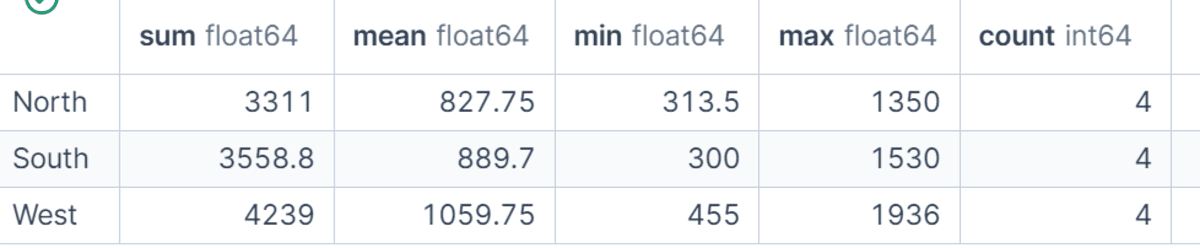
# Using Fictitious Measurements
Named aggregations make the output of GroupBy easier to read and use. Instead of returning common column names like sum or meanwe define our names as total_sales, average_order_value, total_unitsagain number_of_orders.
This is very helpful when preparing analysis dashboards, reports, or tutorials because the output column names clearly describe what each metric represents.
region_summary = (
    df.groupby("region", as_index=False)
      .agg(
          total_sales=("net_sales", "sum"),
          average_order_value=("net_sales", "mean"),
          total_units=("units", "sum"),
          number_of_orders=("order_id", "count")
      )
)

region_summary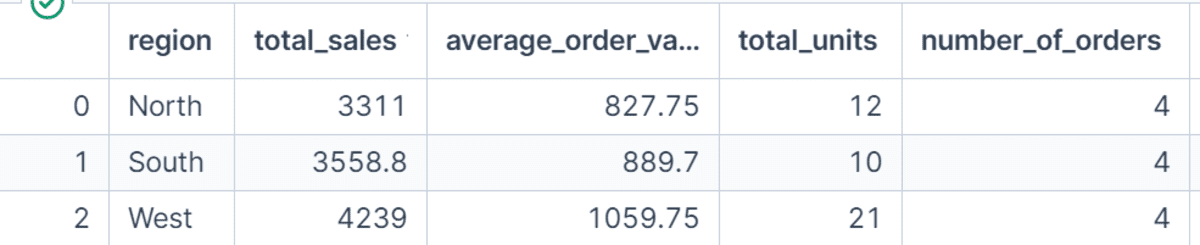
# Grouping by multiple columns
You can also group data by more than one column. In this example, we combine the two region again category to calculate the total net sales of each product category within each region.
This gives us a more detailed view of the data compared to collecting by region alone. Grouping multiple columns is useful when you want to analyze performance across different factors, such as region and product, department and employee, or month and customer segment.
df.groupby(["region", "category"], as_index=False)["net_sales"].sum()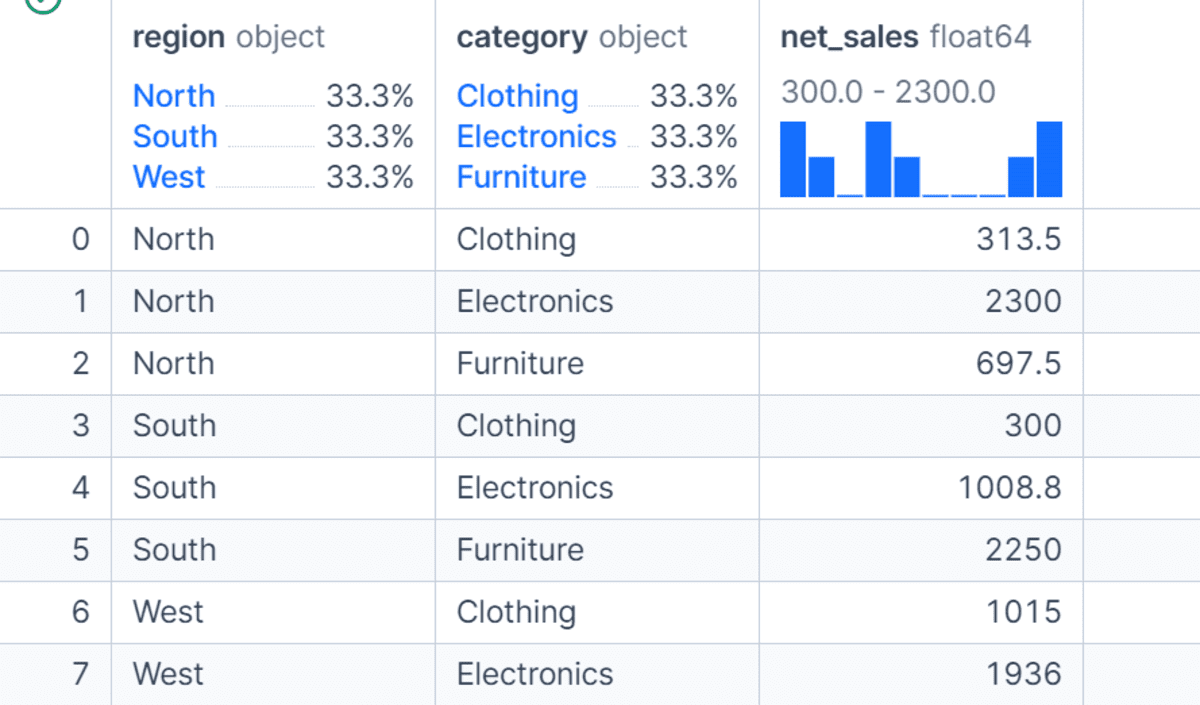
# Sorts GroupBy Results
After collecting and collating the data, you often want to filter the results to find the highest or lowest values.
In this example, we calculate the total sales by product category and sort the results in descending order.
This makes it easy to identify which category generated the most revenue. Filtering the collected results is a simple but powerful step when turning raw summaries into useful information.
category_sales = (
    df.groupby("category", as_index=False)
      .agg(total_sales=("net_sales", "sum"))
      .sort_values("total_sales", ascending=False)
)

category_sales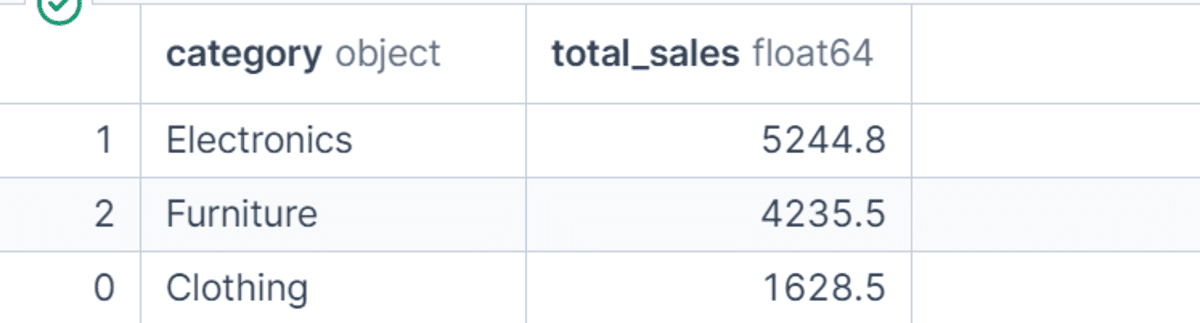
# Understanding Count vs Size
Pandas offers both count() again size()but they are not exactly the same. I size() method calculates the total number of rows in each group, including rows with missing values. I count() method only calculates values that are not in the selected column.
In this example, we are intentionally adding a missing value to the sales_rep column. The output shows that size() it still counts four lines in each region, while count() returns three to North because one sales_rep the value does not exist.
import numpy as np

df_missing = df.copy()
df_missing.loc[2, "sales_rep"] = np.nan

print("Using size():")
display(df_missing.groupby("region").size())

print("Using count() on sales_rep:")
display(df_missing.groupby("region")["sales_rep"].count())
Output:
Using size():
region
North    4
South    4
West     4
dtype: int64

Using count() on sales_rep:
region
North    3
South    4
West     4
Name: sales_rep, dtype: int64
# Using transform() In Group Level Characteristics
I transform() method is useful if you want to calculate the group level value and return it to the original DataFrame.
In this example, we calculate the total sales for each region and store it in a new column named region_total_sales.
We then calculate each order's share of its region's total sales. In contrast agg()which reduces the data to one row per group, transform() returns values aligned with the original lines, making it very useful for feature engineering.
df["region_total_sales"] = df.groupby("region")["net_sales"].transform("sum")
df["order_share_of_region"] = df["net_sales"] / df["region_total_sales"]

df[["order_id", "region", "net_sales", "region_total_sales", "order_share_of_region"]]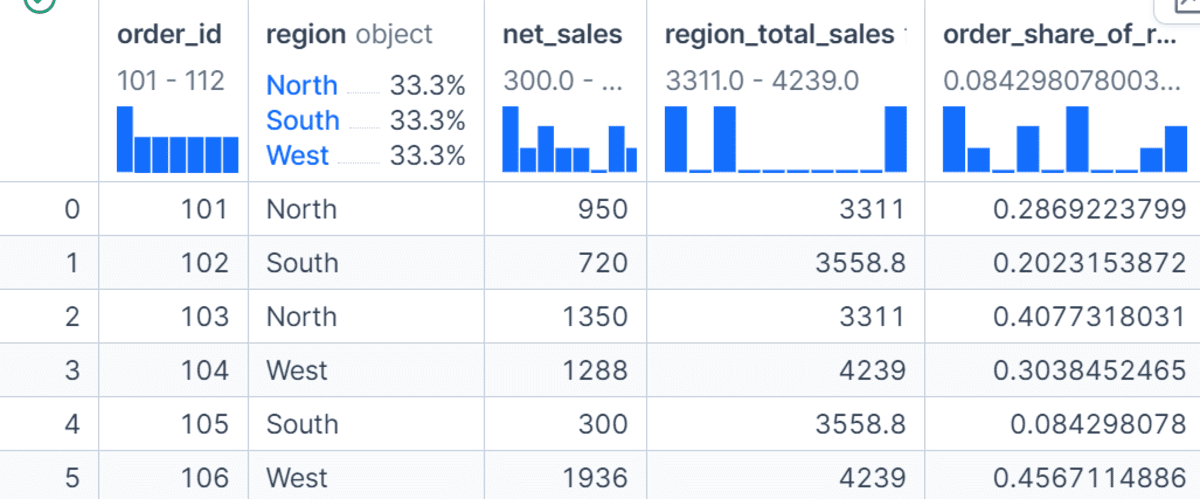
# Sorting Groups By filter()
I filter() method allows you to save or delete all groups based on a criterion. In this example, we only keep states where the total sales are over 3,000.
Instead of returning one summary row for each group, filter() returns the original rows to groups that meet the condition. This is useful if you want to remove groups that are not performing well or keep only groups that satisfy a business rule.
high_sales_regions = df.groupby("region").filter(lambda group: group["net_sales"].sum() > 3000)

high_sales_regions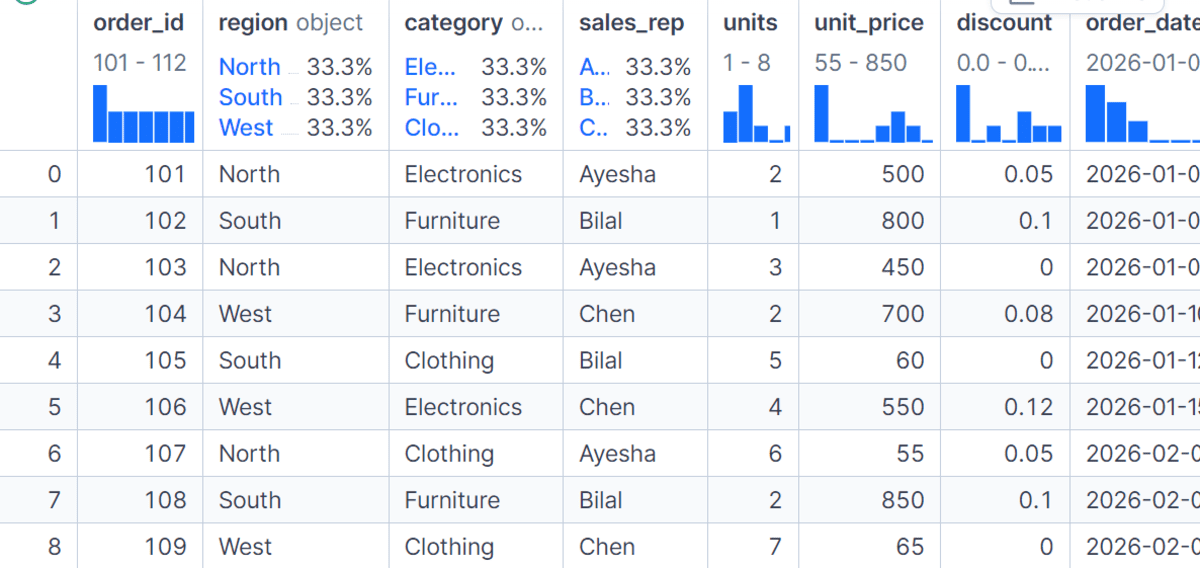
# Using Custom Logic With apply()
I apply() method gives you more flexibility because it allows you to apply custom logic to each group.
In this example, we use apply() with nlargest() to obtain the highest order with net sales in each region. This is useful if the built-in integration functions are not sufficient for your analysis.
However, apply() can be slower than built-in methods like sum(), mean(), agg()again transform()so it's best to use it only if you need smart group tasks.
top_order_by_region = (
    df.groupby("region", group_keys=False)
      .apply(lambda group: group.nlargest(1, "net_sales"))
)

top_order_by_region
# Collection by Dates
GroupBy is also very useful for time-based analysis.
In this example, we subtract the month from order_date column and collect data per month.
Then we calculate the total sales and total orders for each month. This method is useful when analyzing trends over time, such as monthly sales, weekly user activity, or annual revenue growth.
df["month"] = df["order_date"].dt.to_period("M").astype(str)

monthly_sales = (
    df.groupby("month", as_index=False)
      .agg(total_sales=("net_sales", "sum"), total_orders=("order_id", "count"))
)

monthly_sales
# Collecting in Days With pd.Grouper
pd.Grouper provides a clean way to collect time series data without manually creating a separate month column.
In this example, we include the DataFrame with order_date you use the monthly frequency and calculate the total sales and total orders.
This is especially important if you're working with real-world data sets that contain timestamps and want to summarize the data by day, week, month, quarter, or year.
monthly_sales_grouper = (
    df.groupby(pd.Grouper(key="order_date", freq="M"))
      .agg(total_sales=("net_sales", "sum"), total_orders=("order_id", "count"))
      .reset_index()
)

monthly_sales_grouper
# Creating a Pivot Style Summary with GroupBy
You can combine groupby() with unstack() to create a pivot-style summary table.
In this example, we collect data with region again categorycalculate the total amount of sales, and reshape the result so that the categories are columns. This makes the output easy to compare across regions and categories. It's a great option if you're looking for a compact reporting table or quick analysis.
region_category_table = (
    df.groupby(["region", "category"])["net_sales"]
      .sum()
      .unstack(fill_value=0)
)

region_category_table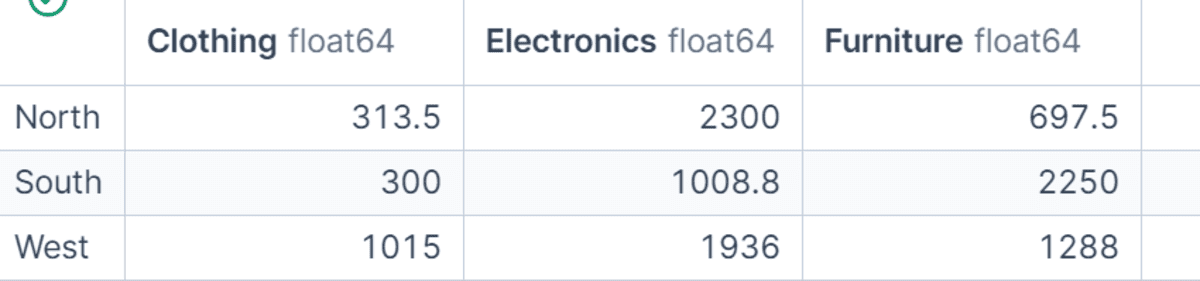
# The conclusion
Pandas GroupBy is one of the most powerful data analysis tools in Python. It helps you summarize data, compare groups, create new features, filter results, and apply custom calculations without writing unnecessary logic.
While working on this tutorial, I realized how much depth there is in GroupBy. Even after working with data for years, I learned new and better ways to solve common problems. Features like pd.Groupercustom assembly functions, and transform() they stand out because they do a lot of work quickly, cleanly, and are easy to maintain.
This is also why understanding native tools is important. It's tempting to rely on vibe scripting or quick custom solutions, but those can often produce slow, complex code. If you know what pandas already provides, you can write more efficient, reusable, and usable solutions for real-world data analysis.
In this tutorial, we have covered the most useful functions of GroupBy, including basic grouping, named grouping, multi-column grouping, sorting, count() vs size(), transform(), filter(), apply()date grouping, and pivot-style summaries. Once you understand these patterns, you can use GroupBy to answer many real-world data analysis questions quickly and confidently.
Abid Ali Awan (@1abidiawan) is a data science expert with a passion for building machine learning models. Currently, he specializes in content creation and technical blogging on machine learning and data science technologies. Abid holds a Master's degree in technology management and a bachelor's degree in telecommunication engineering. His idea is to create an AI product using a graph neural network for students with mental illness.